
-
 Log in to my.thisisschool.com.
 -
Hover over your name and click My Classes.
-
Click Add a Class:
-
Enter the class details and click Save.
-
On the next screen you can add students to your class. It doesn't matter whether these students have used the site before or not.
Either type in your students' names or copy them from your class list by clicking Copy/paste students. -
 If using the copy/paste method, copy your students' names from your class list and paste them into the box. Click Next.
 -
Each student only needs one account, regardless of the subjects they study, or classes they are in.
If the system spots that one of the students you are adding already has an account, you'll see a yellow button appear which says 'Choose an option'. Click on this button and then select the student's profile from the cards below.
If the students have never used the site before, a new account will be created for them automatically.
- Click Save.
- Your class has now been set up!
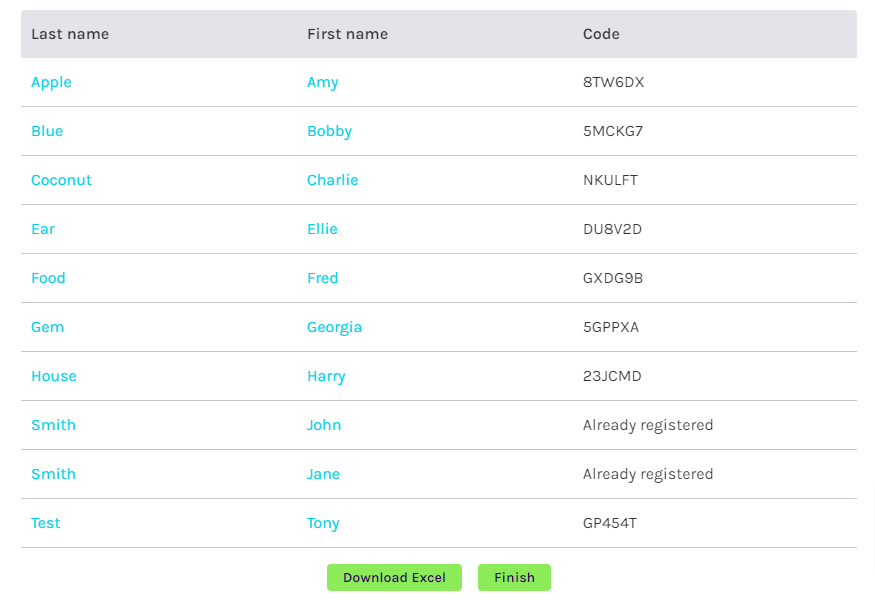
Each new student will be given a registration code which they should use to log in for the first time. Once logged in, they will be asked to set up a username and password which they will use to log in from then on. Students who have used the site before will log in using their existing username and password.
Click Download Printout to print a note for each student containing their code/login details!
That's it, your new students have been added and your class set up - all in one go!
You might also be interested in these articles: